

Cloud Migration is a great tool available in Dynamics 365 Business Central that permits you to securely migrate data from an on-premises SQL Server instance (or Azure SQL) to Business Central online.
You can manage cloud migration from Business Central online through a connection to the on-premises database and various components that establish a pipeline for replicating data. The on-premises solution remains the operative environment until you complete the cloud migration.
The following figure illustrates the main components involved in the data migration process.
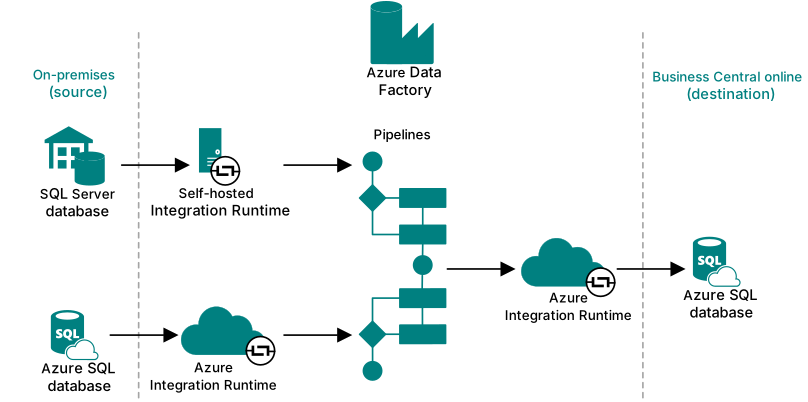
The integration runtime if a core part of this process. It is the compute infrastructure of Azure Data Factory.
There are two integration runtime instances in the end-to-end process. The first instance securely copies data from on-premises to the cloud, where the pipelines are created. If the on-premises database is an SQL Server database, you use a self-hosted integration runtime. This runtime is installed locally on the on-premises network and registered in Azure Data Factory. If the on-premises database is an Azure SQL Database, an Azure Integration Runtime is used.
From the pipeline, the Azure Integration Runtime then moves the data to the online database for the environment.
A mistake that partners sometimes are doing is to re-use the same self-hosted integration runtime between different migration. You start a cloud migration 1, you create a self-hosted runtime for this migration, you successfully complete the migration 1. Then you start a cloud migration 2 reusing the same self-hosted runtime.
In such situations, you can receive the following error message:
The tenant YOURTENANT has not been set up with a valid integration environment.
The most common cause of this error is exactly the usage of the same self-hosted integration runtime for migration to different cloud environments.
When one environment completes the cloud migration process, it disables the cloud side of the integration runtime, making it unusable for the other environments. An integration runtime can also be disabled if it has been inactive for more than 10 days.
To prevent this, you should not share integration runtimes between environments.


