

If someone of you have ever worked with web applications development, probably you have earned about Playwright. Playwright is an open-source automation library for browser testing and web scraping developed by Microsoft and launched on 31 January 2020, which has since become popular among programmers and web developers. Playwright provides the ability to automate browser tasks in Chromium, Firefox and WebKit with a single API and it’s built to enable cross-browser web automation.
Dynamics 365 Business Central 2024 Wave 1 release (v24) introduces a Page Scripting tool, a tool borned with the initial idea to permit to easily record and replay user acceptance tests directly in the Business Central web client. The page scripting tool in the Business Central web client (borned from the Playwright concept) allows you to record your actions, such as opening pages or entering data, and replay them. You can save the recording and share it with others for future playback.
Before using the tool, you need to have the following permission sets assigned to your users:

To start using the tool, go to Settings and select the Page scripting (Preview) action:

The Page scripting tool appears on the right of your screen:

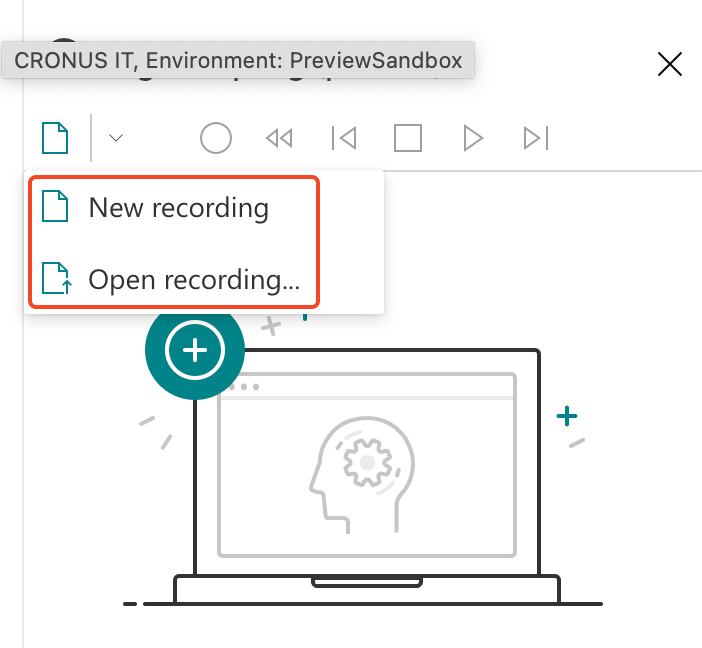
From the tool pane, you can start a new recording or you can open an existing recording:
If you start a new recording, the scripting tool starts recording all the actions you’re performing in the client and all the inputs you’re doing (like inserting or modifying a value in a field). Here for example I’ve opened the Customer List page, then I’ve selected a Customer record (opening the card page), then from the card I’ve opened the Sales Prices page and inserted a new sales price for an item:

You can track every actions and every field modifications, also from custom or third-party extensions.
During the recording phase you can delete the last recorded step if needed. You can stop and resume the recording when needed:

During recording, you can right click on a field and then a context menu appears, with actions to copy a field value, to past a value, to validate a field and more:

Here for example I’ve inserted a recording to validate the Sales Code field with a value of 100000:

You can change this recorded value by selecting the step and click on Properties.

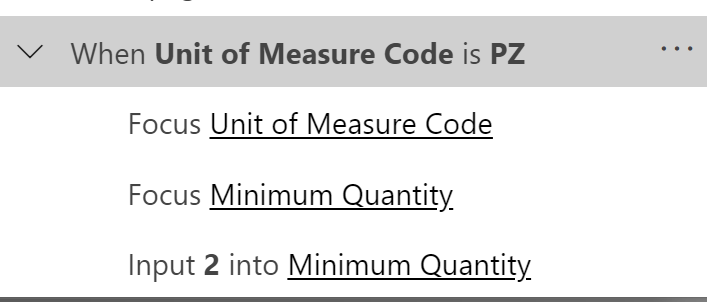
In your recording you can also add conditional steps. Conditional steps are steps that are executed onlyif a certain condition occurs. For example, here I want to add a step that occurs only if the selected Unit of Measure Code is PZ:

The script pane shows a condition like in the following image. You can then add the steps that occurs after the condition and close the condition scope by clicking the End scope button that appears on the page scripting toolbar:

The scope is now closed with the actions you have registered for it:
In the scripting pane, you can see that some recorded steps have properties that can be changed by using Power FX formulas (here is the link for reference):

With PowerFX you can do a lot, like testing field values, add complex formulas and so on.
A recording can then be played and all the recorded actions are executed in the web client. You will see an indicator if an action is succeeeded or not:

From the page scripting toolbar you can save the recording as a YAML file and this YAML file can the be opened again later (from the Open recording action). You can also share the recording with other colleagues via the Share button (link includes full actions recording and results).

The saved file is a full YAML file with actions and values:

What’s the power of that?
This is a wonderful in-client scripting tool. You can immediately start using it for:
- creating user acceptance tests
- creating recording for trainings or educations (just record how to use a business process, save the YAML file and send it to other colleagues or customers)
Just start creating your set of recordings, save them as YAML file under your SCM system and you’re ready to go with your tests libraries.
And for the future?
Imagine to be able to write automated tests for your apps directly by defining a YAML file from a user interface…

 Stefano Demiliani
Is this feature available also on Prem? I have added the permission sets but I co0uls not see the page scripting in my setup.
LikeLike
What version and localization are you using?
LikeLike
Can we run it in the headless browser mode?
LikeLike
What do you mean exactly?
LikeLike
It’s something like Puppetteer https://github.com/puppeteer/puppeteer to run the page scripts in a kind of a background process
LikeLike
There’s not this possibility at the moment.
LikeLike
Hi, do you have a date for when we’ll be able to create automated tests from yaml files?
tx
LikeLike
There’s not yet an official plan for a dev-oriented tool like this at the moment. But it’s something highly requested.
LikeLike
Very powerful tool in my opinion. I am using it for a couple of weeks now. But sometimes when I run the script more than once, it hangs. For example when I open a page and add a filter. The first time, it runs without problem, second time, adding the filter hangs.
LikeLike