

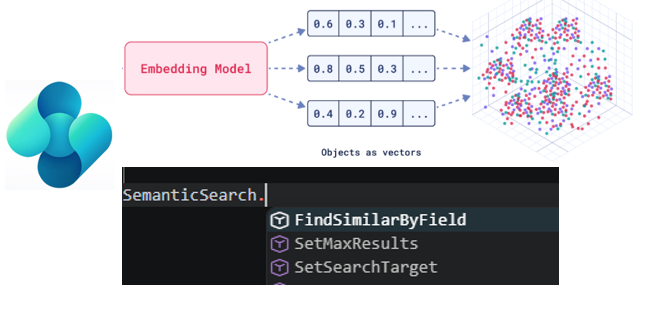
It was February 2024 (time flies🥴) when Microsoft did a 3-day #BCAIHackathon initiative and me with Dmitry and Jeremy launched a native semantic search implementation in Business Central. You can read more about that here.
On that prototype we demonstrated that having a backend-native semantic search (so using embeddings at the SQL level) can improve the performances of searches for semantically terms a lot.
After that prototype we had some internal discussions with Microsoft and finally now we see this baby come into life.🥂🍾
I’m personally really happy to announce that Dynamics 365 Business Central now exposes embedding-based semantic search as a first-class AL capability.
Why is Semantic Search important?
Traditional search engines (keyword-based) treat text as strings:
- They match words character-by-character.
- “Customer” ≠ “client” (different strings, even if synonymous).
- Context is irrelevant, they just count word occurrences.
Semantic search understands the meaning of your query, not just keywords. It finds results based on intent and context rather than exact word matches.
Semantic search uses vector embeddings and language understanding:
- Every piece of text (document, item description, phrase) is converted into a numerical representation called an embedding
- These embeddings capture semantic meaning—the relationship between words and concepts
- Similar meanings produce similar embeddings, regardless of exact wording
- When you search, your query is also converted to an embedding and compared against all stored embeddings
- Results are ranked by semantic similarity, not keyword frequency
Imagine this scenario: you’re looking for items suitable for outdoor weathering.
Your item descriptions in BC might vary:
| Item No. | Description |
|---|---|
| IT-001 | Stainless Steel Fasteners |
| IT-002 | UV-resistant composite decking |
| IT-003 | Corrosion-proof metal brackets |
| IT-004 | All-weather sealant compound |
| IT-005 | Galvanized steel hinges |
Keyword Search (exact match only):
- Query:
"outdoor weathering"→ Returns 0 results ❌ - Why? Because none of your descriptions use that exact phrase!
Semantic Search (understands intent):
- Query:
"outdoor weathering"→ Returns all 5 items ✓ - Why? Because semantic search understands semantic relationships:
- “UV-resistant” = weathering protection
- “Corrosion-proof” = outdoor durability
- “All-weather” = weathering resistant
- “Galvanized” = corrosion/weather protection
- “Stainless steel” = rust-resistant outdoor use
How is Semantic Search implemented in Business Central?
Dynamics 365 Business Central now stores vectors in tthe Azure SQL Database and queries them via vectors functionalities provided by the SQL platform. Embeddings are now cached in the tenant database and the embedding generation (that takes time!) is done in background for platform metadata search.
Semantic Search in Dynamics 365 Business Central is implemented via the new System.Search.”Semantic Search” codeunit. This codeunit currently exposes the following methods:
- procedure SetSearchTarget(Record: RecordRef): sets the target to search. Any filters set on the record will be applied to the search.
- procedure SetMaxResults(MaxResults: Integer): sets the maximum number of results to return from a search. The maximum limit is currently set to 1000 rows.
- procedure FindSimilarByField(SearchText: Text; FieldIds: List of [Integer]; var ResultTable: Record “Similarity Result”): Boolean: performs a semantic (similarity) search for the specified text on a specified list of fields and populates the provided result table with the search results.
At the time of writing this post all these methods require that the extension has “target”: “OnPrem” (so they cannot be used on SaaS at the moment, but probably this feature will be SaaS-only). Plans are to open them for SaaS on v29.
Here is an example of usage of the semantic search features in AL:
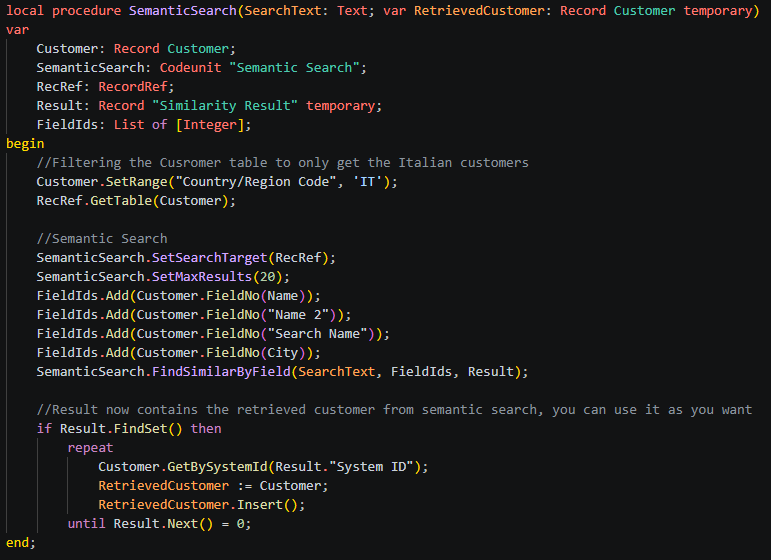
As you can see usage is quite simple:
- You set the search target table.
- You set the max number of search results to return from the search.
- You set the fields that must be searched for similarity.
- You start the search.
- A Record “Similarity Result” temporary table is filled with the results of the search.
This is a very great feature because it opens the doors to many new interersting scenarios, expecially for AI. Now we only need the last step: waiting a bit more to have it available on cloud! 😉


Hi Stefano,Can you share a bit more about technical details? On one hand you said ‘that BC stores vectors in the Azure SQL Database’, on the other – this is available only for on-prem. That impiles one has to have Azure SQL Database provisioned and a connectivity setup somehow in your local on-prem installation and network?Slawek
LikeLike
This features uses Azure SQL embeddings feature. At the moment the codeunit is scoped OnPrem just because Microsoft is testing the impact on the service. It will be opened soon and probably this feature will be SaaS-only.
LikeLike