


This is a quick post for showing you a tip (or something similar 😀 ) that I’ve discovered not a lot of partners know.
During the development phase of an extension with Visual Studio Code, it’s quite common to work connected to a Sandbox enviroment for testing and debugging of your code. And it’s also quite common nowadays to have multiple browsers installed on the local development machine (Edge, Chrome, Safari, Firefox etc.).
When publishing and debugging an extension from Visual Studio Code (F5) the Dynamics 365 Business Central sandbox environment is opened in the default browser for your local machine operative system.
But how can you change that only for AL development?
The AL language extension has some useful settings to do that:
- “al.browser”: specifies the browser in which to open the Business Central client when launching the application from Visual Studio Code.
- “al.incognito”: specifies whether to open the browser in Incognito/InPrivate mode when launching the application from Visual Studio Code. This option will take effect only if the “al.browser” option is set to a non-default value.
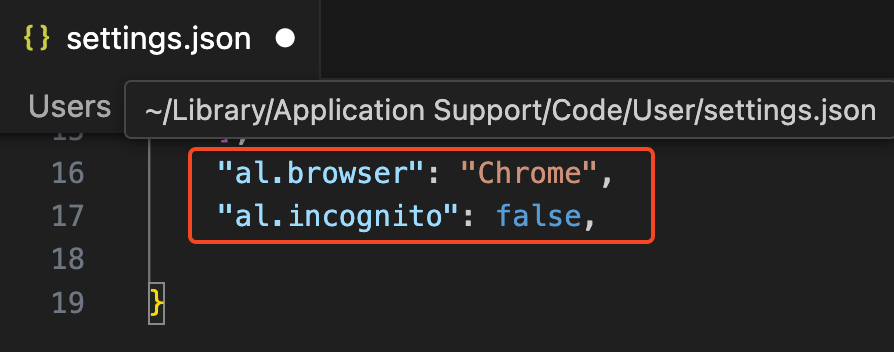
These settings must be specificed in the Visual Studio Code user’s or workspace’s settings.json file:
Possible browser’s values are the following:
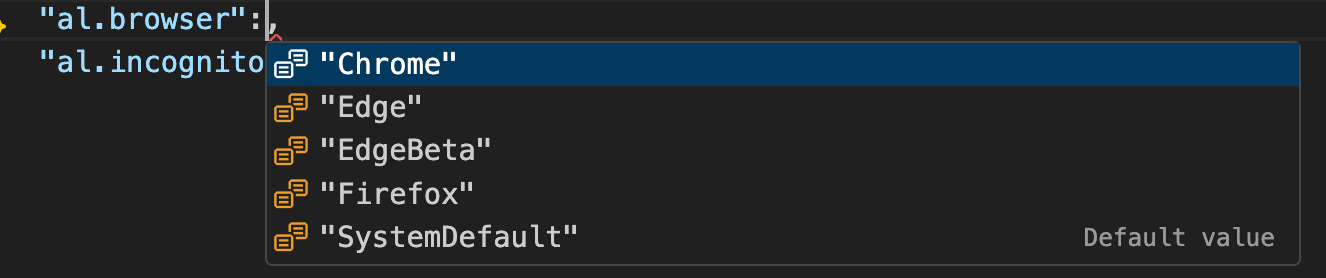
where SystemDefault is the default browser as setted in your local machine.
As an example, if you want that during development of an AL extension, your Dynamics 365 Business Central environment must be always be opened with Chrome in incognito mode, you can use the following settings:

If you want to use the Edge browser in incognito mode, the recommended way to do that now is using the following settings:
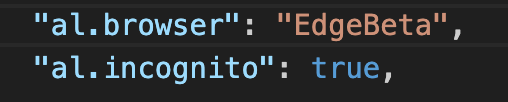
Setting the al.browser value to Edge in Incognito mode can cause an Edge error (this will be fixed).
If you’re like me (I want that Business Central is always opened in a specific browser during development) I recommend to use this feature.

 Stefano Demiliani
What I’ve always wondered is whether it would also be possible to have it open Edge, _but_ with a specific Edge Work profile.
Right now I have to put focus on the correct browser window that has the desired Work profile open for that to work.
Do you know if something like that is possible? And/or how do you handle more easily working with different tenants? 🙂
LikeLike
Interesting idea. I know that you can open Chrome or Edge with a selected profile by using:
chrome.exe --profile-directory="YOURPROFILE"so adding a parameter in settings.json or launch.json for this in the AL extension should be possible.
Easily working with different tenants you mean different logins? Delegated admins when possible is my personal choice (we handle hundreds of customers with the same login).
LikeLike
Yes, for most cases logging in as Delegated Admin is just fine.
But there is some scenarios that are not supported for Delegated Admin _and_ we have cases were we have special development/test tenants for which we specifically need to login under different accounts (to also get the same behaviour and experience as that of actual users), and for that I am using Edge profiles.
It’s working like a charm and it’s really great for quickly switching over to my user accounts in different tenants (e.g., our own tenant and development and testing tenants).
The last thing that would have made it even better is if VS Code/AL would support launching with/into the correct Edge profile. So that’s why I was asking if you maybe happened to have an idea of whether it would be possible to achieve this, or if it is just hoping (/going to aka.ms/bcideas) for Microsoft to add support for this as well. 😊
LikeLike