

With Dynamics 365 Business Central 2026 Wave 1 release (v28) Microsoft introduced a new SFTP Client module in System Application, that provides an API that lets you connect directly to SFTP servers from Business Central (via AL code).
This new app (not directly visible from Extension Management) uses SSH.NET to connect to SFTP servers. SSH.NET is a Secure Shell (SSH-2) library for .NET, optimized for parallelism. It provides SFTP functionality for both synchronous and asynchronous operations, authentication via public key, password and keyboard-interactive methods, including multi-factor and connection via SOCKS4, SOCKS5 or HTTP proxy.
The main component of this app is the SFTP Client codeunit. This codeunit exposes the different functions available to the user to interact with an SFTP remote server.
The supported authentication methods are as follow:
- Username/Password
- Username/Private Key (Without passphrase)
- Username/Private Key (With passphrase)
You must always add the fingerprint of the server you want to connect to, before connecting.
A fingerprint is a unique digital identifier for a server’s SSH public key. Think of it like a thumbprint for the server (it’s a short, human-readable representation of something much longer and more complex). Imagine you’re meeting someone for the first time and you want to make sure they are who they claim to be. Instead of memorizing their entire face, you remember one distinctive feature (like a scar or a tattoo). That’s what a fingerprint does for servers.
Here’s what happens:
- Future connections use it: your client checks that every connection uses the same fingerprint.
- The server has a public key: a long string of characters used for encryption.
- The fingerprint is a “compressed” version: a short hash (typically 32-128 characters) that represents that public key.
- You verify the fingerprint: you check it once to confirm the server is legitimate.
When you connect to an SFTP server for the first time, your client (Business Central in this case) doesn’t know if the server is trustworthy. By explicitly adding and verifying the fingerprint beforehand, you’re verifying that this specifi server is who must be and that the client need to connect to it only. This prevents man-in-the-middle attacks where a malicious server pretends to be your SFTP server.
Your SFTP server administrator should provide it to you, or you can extract it using command-line tools.
If your Windows Server has OpenSSH installed, you can get the host key fingerprint directly:
# Get the SSH host key fingerprint
ssh-keygen -l -f C:\ProgramData\ssh\ssh_host_ed25519_key
Common key locations:
C:\ProgramData\ssh\ssh_host_ed25519_key(ED25519 – recommended)C:\ProgramData\ssh\ssh_host_rsa_key(RSA)C:\ProgramData\ssh\ssh_host_ecdsa_key(ECDSA)
Output example:
256 SHA256:abcD1EfGhIjKlMnOpQrStUvWxYz2A3b4C5d6E7f8G9 administrator@SERVER (ED25519)
To connect to an SFTP server from AL code and transfer a file, you can now do like in the following code:
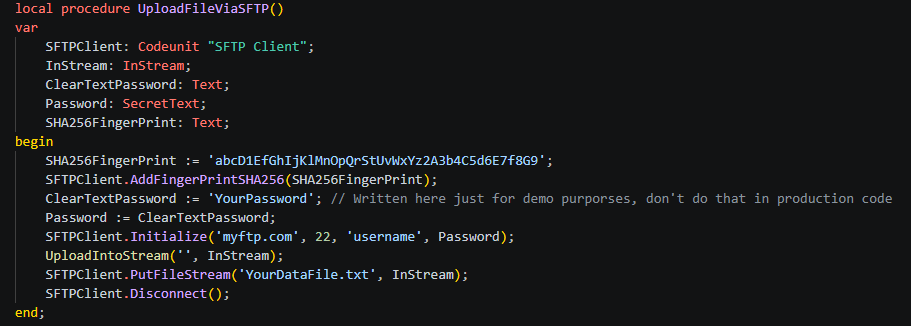
To download a file from a remote SFTP server, you can use the GetFileAsStream method:
SFTPClient.GetFileAsStream('YourDataFile.txt', InStream);
that permits you to download a file from the SFTP server and returns it as an InStream.
You can also list available files using the SFTPClient.ListFiles method:
procedure ListFiles(Path: Text; var FileList: List of [Interface "ISFTP File"]): Codeunit "SFTP Operation Response"
that lists the files in the specified path on the SFTP server. The result is returned as a list of SFTP File interfaces.
To delete a file from the remoteb SFTP server, you need to call the DeleteFile method:
procedure DeleteFile(Path: Text): Codeunit "SFTP Operation Response"
Please note that the connection is stateful. That means, when you have created a connection, you should always use SFTPClient.Disconnect() when finished.

 Stefano Demiliani