

The AL Development Tools package is a cross-platform, NuGet-based set of tools designed for compiling, packaging, and managing Dynamics 365 Business Central AL extensions outside of Visual Studio Code. It enables automation in CI/CD pipelines (Azure DevOps/GitHub Actions) for building, signing, and deploying without a full GUI installation.
You can install the tool in your system by using the following command:
dotnet tool install Microsoft.Dynamics.BusinessCentral.Development.Tools --interactive --prerelease --global
After installing the .NET Tool, you have access to the al command. To view the available tools, you can run:
al --help
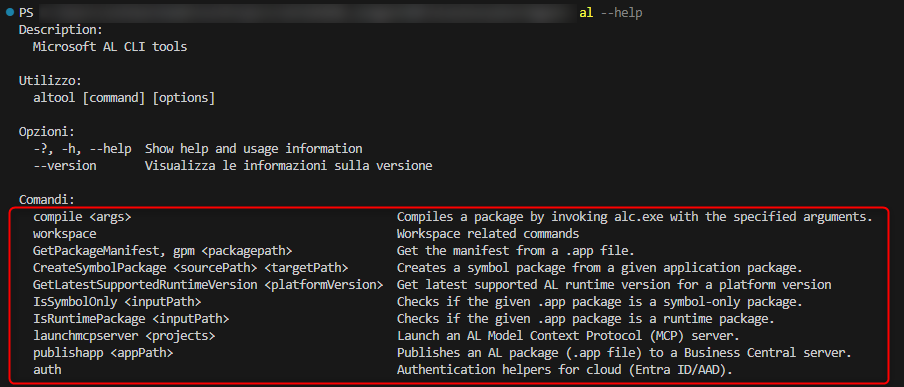
The latest 17.X version of the AL Development Tools package introduces the launchmcpserver command. This command starts up an HTTP-based MCP server, which can be used by coding agents to invoke AL-specific development tools.
The minimal usage is the following:
al launchmcpserver <projectFolder>
where <projectFolder> is the folder path of your AL project.
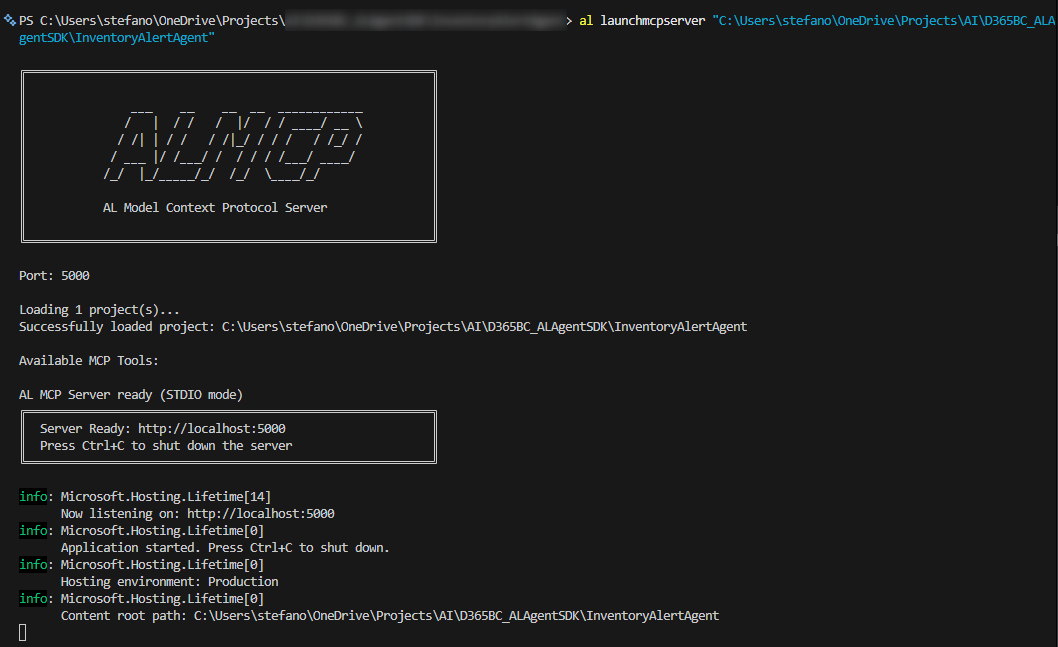
the server will run at default at the following url: http://localhost:5000
and you can press Ctrl+C to shut down the server.
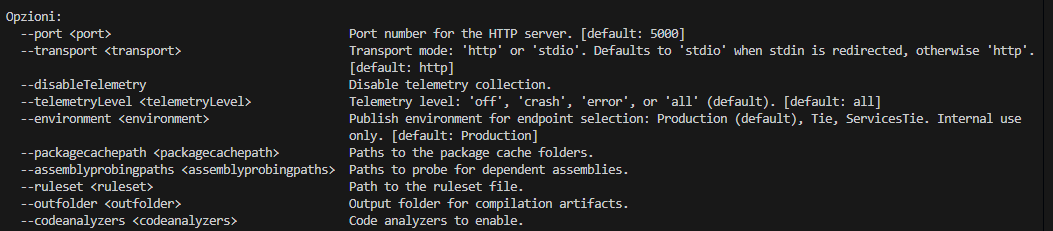
The launchmcpserver command also supports a set of optional parameters, like the following:
- –port: Port number for the HTTP server. [default: 5000]
- –-transport: Transport mode: ‘http’ or ‘stdio’. Defaults to ‘stdio’ when stdin is redirected, otherwise ‘http’.
- –disableTelemetry: Disable telemetry collection.
- –-telemetryLevel <TelemetryLevel>: ‘off’, ‘crash’, ‘error’, or ‘all’ (default). [default: all]
- –environment <environment>: Publish environment for endpoint selection: Production (default), Tie, ServicesTie. Internal use only. [default: Production]
- –packagecachepath <packagecachepath>: Paths to the package cache folders.
- –-assemblyprobingpaths <assemblyprobingpaths>: Paths to probe for dependent assemblies.
- –ruleset <ruleset>: Path to the ruleset file.
- –outfolder <outfolder>: Output folder for compilation artifacts.
- –-codeanalyzers <codeanalyzers>: Code analyzers to enable.
When invoked with a specific project parameter, the al launchmcpserver command will make the following tools available to AI agents on the specified project:
| Tool Name | Purpose |
|---|---|
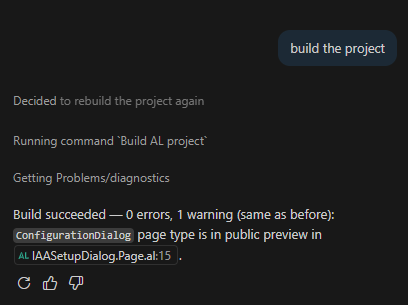
al_build | Build AL project(s). Supports scope parameter: ‘current’ for single project, ‘all’ for workspace with dependencies. |
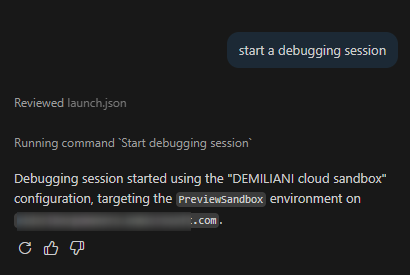
al_debug | Start a debugging session without publishing the extension. |
al_downloadsymbols | Download symbols for the current project. |
al_publish | Publish AL package with flexible skipbuild, debugging, incremental, and dependency modes. Use skipbuild=true for already packaged extensions, fulldependencytree=true for full dependency chain. |
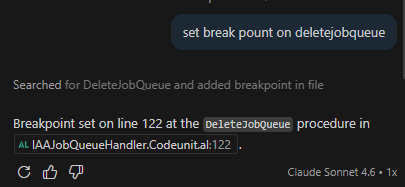
al_setbreakpoint | Set, remove, or toggle breakpoints in AL code. Supports actions: ‘toggle’ (default), ‘add’, ‘remove’. |
al_snapshotdebugging | Manage snapshot debugging sessions. Supports actions: ‘initialize’, ‘finish’, ‘view’ (opens snapshots view). |
al_symbolsearch | Search for AL symbols in the open workspace and dependencies. |
Note: These tools are experimental and subject to change in future updates.
This means that from your favourite AI coding tool (GitHub Copilot, Claude, Codex and more) you can do things like setting breakpoints in your AL solution:
or searching for symbols, or building the AL project:
or starting a debugging session (without publishing the app):
and more actions coming in the future.
If you want to streamline with AI common AL development workflows, this is a nice addition to the traditional AL development tools that you can start using from today.

 Stefano Demiliani