

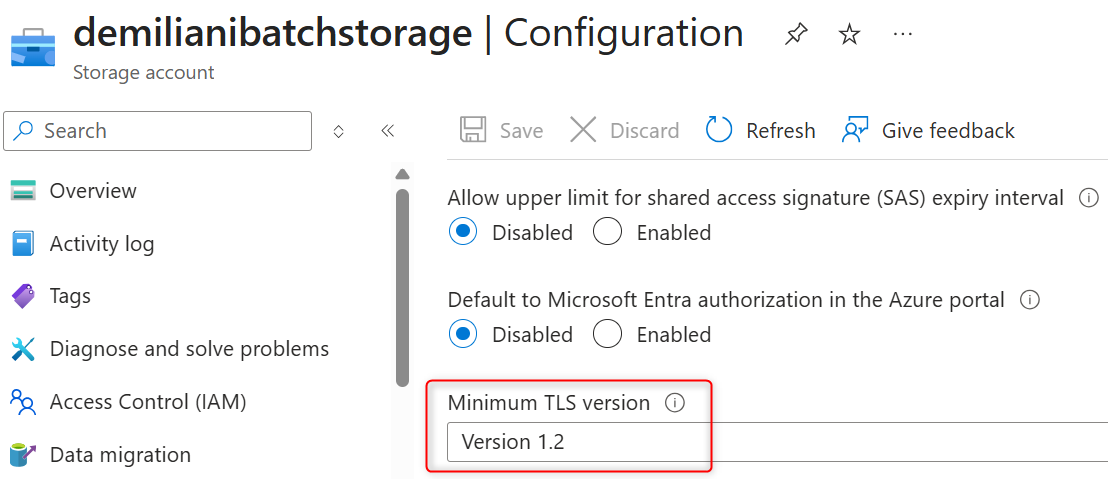
If you have applications that uses an Azure Storage Account, please remember that on February 3, 2026, Azure Blob Storage will stop supporting versions 1.0 and 1.1 of Transport Layer Security (TLS). TLS 1.2 will become the new minimum TLS version.
This change impacts all existing and new blob storage accounts, using TLS 1.0 and 1.1. New storage accounts are TLS 1.2 compliant by default.
Fixing TLS version in Azure Storage Accounts
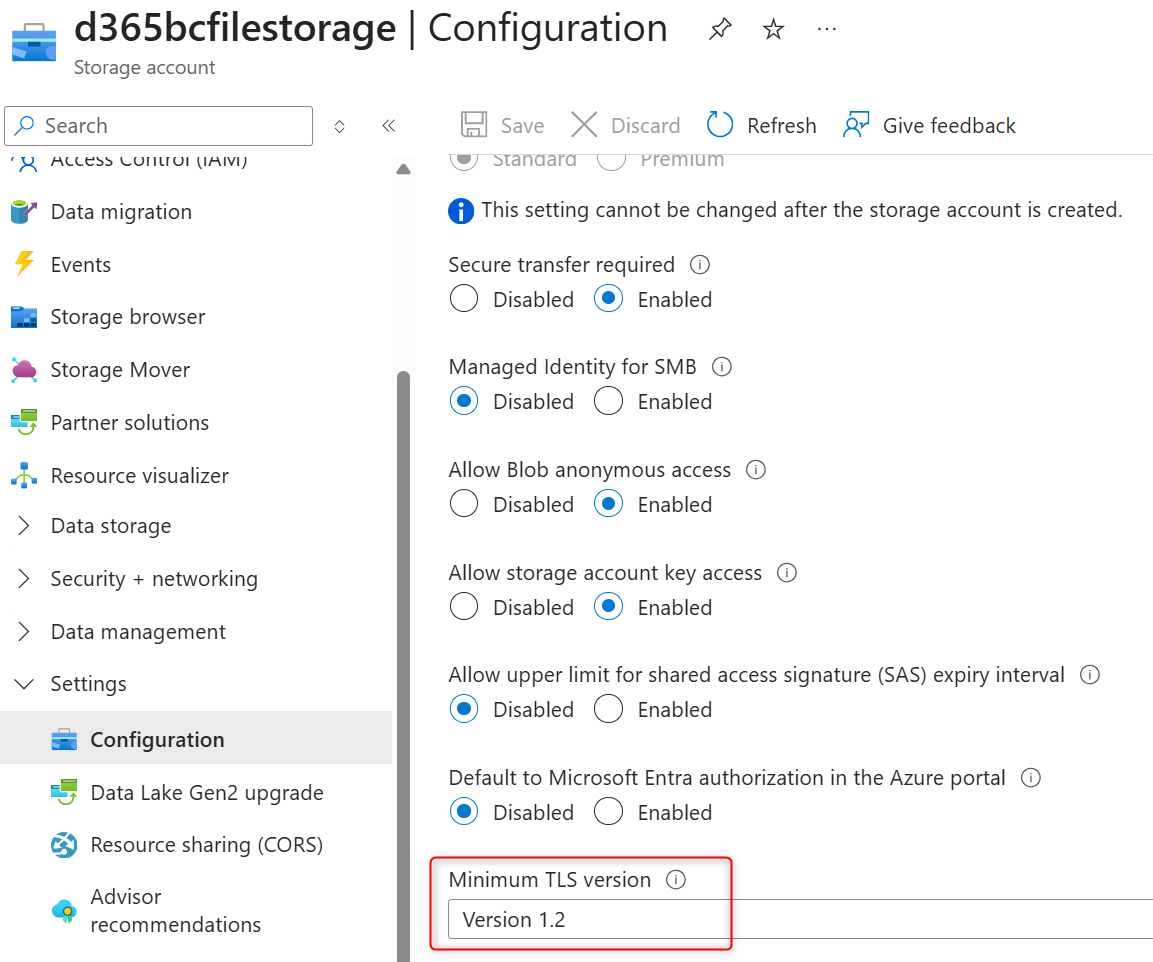
To configure the minimum TLS version for an existing storage account with the Azure portal, you can follow these steps:
- Navigate to your storage account in the Azure portal.
- Under Settings, select Configuration.
- Under Minimum TLS version, use the drop-down to select the minimum version of TLS required to access data in this storage account.
You can easily retrieve all the storage accounts configured with a TLS version < 1.2 by using Azure CLI and executing the following query:
# Get all storage accounts and filter those with TLS < 1.2
az storage account list --query "[?minimumTlsVersion=='TLS1_0' || minimumTlsVersion=='TLS1_1' || minimumTlsVersion==null]" --output table
This will give you a detailed list of storage accounts you need to check:

You can update all the Azure Storage Accounts with a TLS version < 1.2 to support TLS 1.2 with the following Azure CLI bash script:
#!/bin/bash

echo "Updating Storage Accounts to TLS 1.2"
echo "====================================="

updated_count=0
failed_count=0

az storage account list --query '[].{name:name, resourceGroup:resourceGroup}' -o json | jq -r '.[] | "\(.name) \(.resourceGroup)"' | while read name rg; do
  tls=$(az storage account show --name "$name" --resource-group "$rg" --query minimumTlsVersion -o tsv 2>/dev/null)

  # Check if TLS version is less than 1.2
  if [[ "$tls" == "TLS1_0" ]] || [[ "$tls" == "TLS1_1" ]] || [[ -z "$tls" ]]; then
    echo "Updating $name (Current: ${tls:-null/default})..."

    if az storage account update --name "$name" --resource-group "$rg" --min-tls-version TLS1_2 &>/dev/null; then
      echo "✓ Successfully updated $name"
      ((updated_count++))
    else
      echo "✗ Failed to update $name"
      ((failed_count++))
    fi
  fi
done

echo ""
echo "Summary: Updated=$updated_count, Failed=$failed_count"
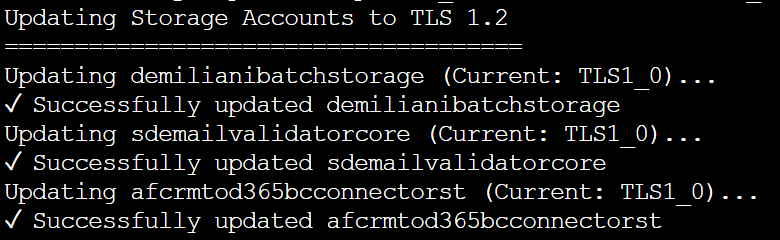
After the massive update, the below query should return empty values:
az storage account list --query "[?minimumTlsVersion!='TLS1_2'].{name:name, tls:minimumTlsVersion}" --output table
Fixing TLS version at the application layer
To avoid disruptions to your applications connecting to Azure Storage, you must migrate to TLS 1.2 (your application must be able to send and receive data by using TLS 1.2) and remove dependencies on TLS version 1.0 and 1.1, by February 2, 2026.
TLS 1.2 is more secure and faster than TLS 1.0 and 1.1, which don’t support modern cryptographic algorithms and cipher suites.
Remember that TLS 1.2 is enabled by default on
- Windows >=8
- Windows Server >= 2016
So it’s nothing new…
When possible, you should avoid hardcoding the TLS protocol version in your application’s code. Instead, it’s better to configure your applications to always defer to your operating system’s default TLS version because this approach lets your applications take advantage of future TLS versions.
With .NET Framework, you can enable the SystemDefaultTLSVersion flag to defer to your operating system’s default TLS version.
To enable SystemDefaultTlsVersions in .NET Framework applications, you need to configure it through the Windows Registry. This tells .NET Framework to use the operating system’s default TLS settings rather than its own hardcoded defaults.
To do that, add the following registry keys:
For 64-bit applications on 64-bit Windows:
[HKEY_LOCAL_MACHINE\SOFTWARE\Microsoft\.NETFramework\v4.0.30319]
"SystemDefaultTlsVersions"=dword:00000001
"SchUseStrongCrypto"=dword:00000001
For 32-bit applications on 64-bit Windows (WOW64):
[HKEY_LOCAL_MACHINE\SOFTWARE\Wow6432Node\Microsoft\.NETFramework\v4.0.30319]
"SystemDefaultTlsVersions"=dword:00000001
"SchUseStrongCrypto"=dword:00000001
Here is a quick Powershell script to do that:
# Run as Administrator
$registryPaths = @(
    "HKLM:\SOFTWARE\Microsoft\.NETFramework\v4.0.30319",
    "HKLM:\SOFTWARE\Wow6432Node\Microsoft\.NETFramework\v4.0.30319"
)

foreach ($path in $registryPaths) {
    if (Test-Path $path) {
        Set-ItemProperty -Path $path -Name "SystemDefaultTlsVersions" -Value 1 -Type DWord
        Set-ItemProperty -Path $path -Name "SchUseStrongCrypto" -Value 1 -Type DWord
        Write-Host "Updated: $path"
    }
}

Write-Host "TLS settings updated. Restart applications for changes to take effect."
If you have applications that target .NET Framework 4.5 or earlier, it’s time to upgrade and use .NET Framework 4.7 or later because these versions support TLS 1.2.
For .NET Core/.NET 5+ applications, all what I described above is not needed because they use OS defaults automatically. Hoping that everyone of you is in this last case…
P.S. if you have telemetry connected to your storage accounts, you can discover the requests by TLS version using the following KQL query (here extracting data for last 30 days):
StorageBlobLogs
| where TimeGenerated > ago(30d) and AccountName == "<account-name>"
| summarize count() by TlsVersion
P.S 2: Dynamics 365 Business Central is TLS 1.2 compliant, it has no issues related to storage account connection with TLS.

 Stefano Demiliani