

Dynamics 365 Business Central 2024 Wave 2 release (version 25) introduces a new search capability for list pages.
Now users will be able to switch between the old “legacy” search (search in all possible columns available in the selected list page) and the new “modern” search (search in columns optimized for text search where the algorithm can do a full-text match):
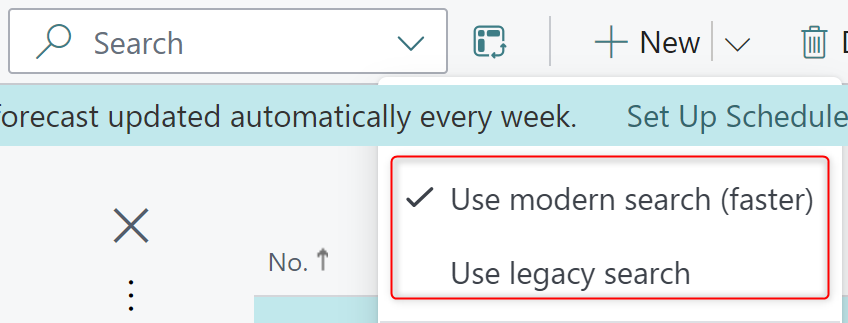
The difference is visible in terms of performances and results. Just to give a quick example, let’s open the Item List page and search for the word “beans roasted”. This is the result with the new modern search enabled:
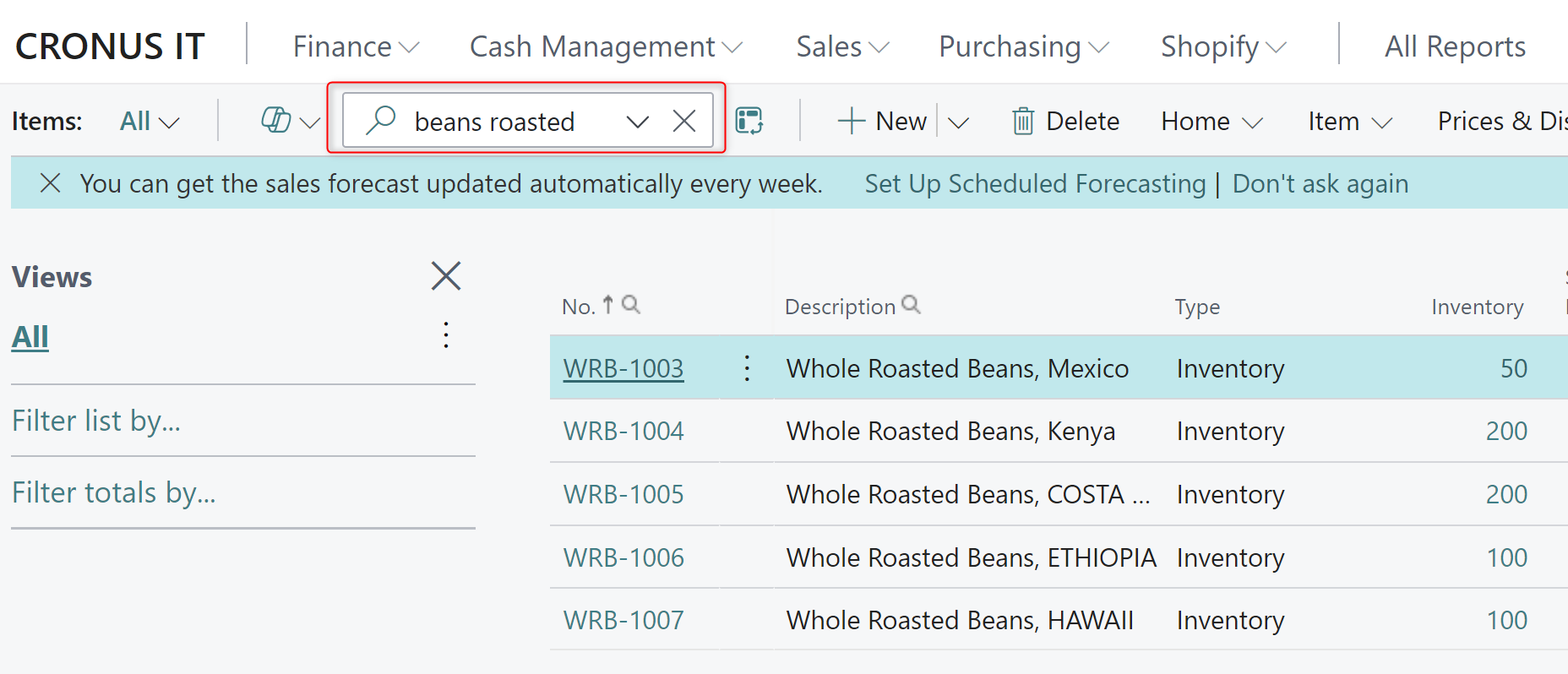
As you can see, the result are filtered by the typed text, also if the searched word are in a different order in the item’s description.
If you perform the same search with the old legacy search enabled, this is the result:
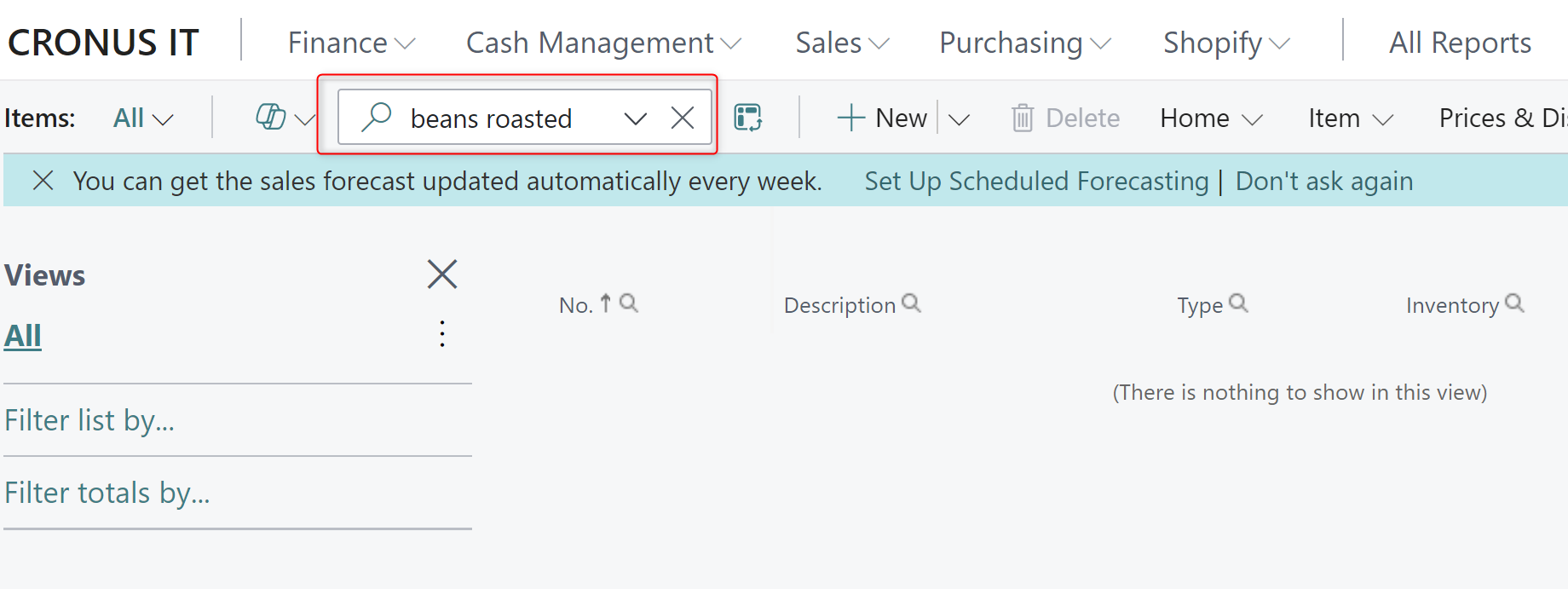
No records found!
How full-text search works?
Full-Text Search in SQL Server and Azure SQL Database lets users and applications run full-text queries against character-based data in SQL Server tables.
A full-text index includes one or more character-based columns in a table. These columns can have any of the following data types: char, varchar, nchar, nvarchar, text, ntext, image, xml, or varbinary(max) and FILESTREAM. Each full-text index indexes one or more columns from the table, and each column can use a specific language.
Full-text queries perform linguistic searches against text data in full-text indexes, by operating on words and phrases based on the rules of a particular language
After columns are added to a full-text index, users and applications can run full-text queries on the text in the columns. These queries can search for any of the following conditions:
- One or more specific words or phrases (simple term)
- A word or a phrase where the words begin with specified text (prefix term)
- Inflectional forms of a specific word (generation term)
- A word or phrase close to another word or phrase (proximity term)
- Synonymous forms of a specific word (thesaurus)
- Words or phrases using weighted values (weighted term)
Full-text queries aren’t case-sensitive.
How to control the searching method?
The default search method to use in list pages is controlled via Feature Management (Feature: Use optimized text search in lists):
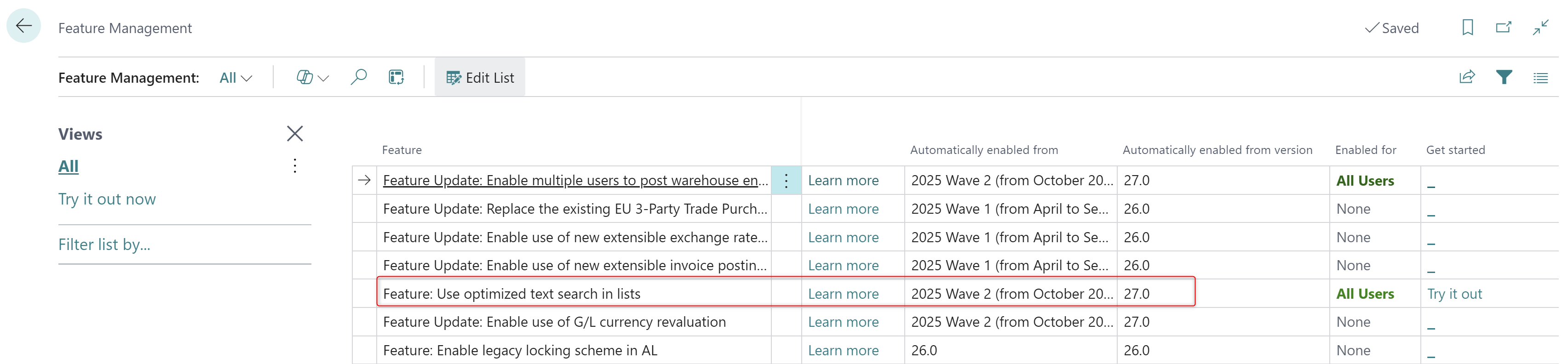
and you can change the behaviour of the search box for each page using directly the new control in the page search box.
The new “modern” search is (at the moment) planned to become the default behaviour starting from Dynamics 365 Business Central 2025 Wave 2 release (version 27).
There will be the possibility to control the full-text indexed fields for each list via AL language and also a new syntax for optimized text search filters. At the time of writing this post, there will NOT be the possibility to launch a full-text search via code.
Please note that columns which are not enabled in the full-text index are now excluded from the search results.
For Dynamics 365 Business Central on-premises environments, this feature can require to install the SQL Server Full-Text Search component.
Full Text Search is not installed by default during SQL Server installation, you need to select it separately as additional feature during installation. If you are going to install a new SQL Server instance, you need to click the checkbox near “Full-Text and Semantic Extractions for Search” option on the feature selection window in the SQL Server setup:
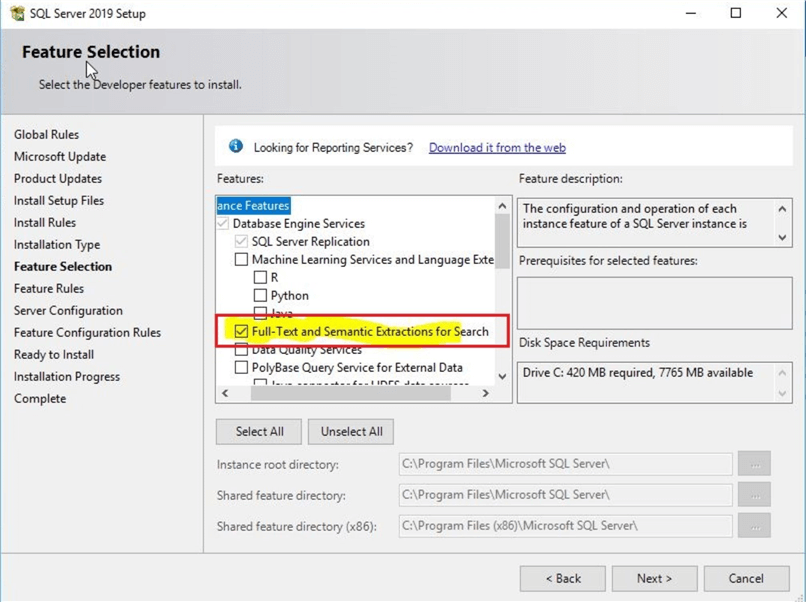
if instead you have installed SQL Server without selecting the Full Text Search feature then you need to run the setup again to add this component to the existing SQL Server instance.
If you want to check whether Full Text Search is installed in your SQL Server instance, then you can run the below T-SQL statement to get this information:
SELECT SERVERPROPERTY('IsFullTextInstalled') AS [Full Text Search Installed];
GO
When talking about searching data in list pages, I always remember that filtering is better for performances. I always suggest to instruct your users to use filtering and not abusing of the search box available in the list page. The search box creates a lot of SELECT LIKE % instructions on the underlying Azure SQL database (and in telemetry), killing performances on huge lists.
A personal desiderata that I would like to have in a future Dynamics 365 Business Central release is the possibility to disable the “Search in list page” box (maybe via code or settings) for some list pages. This can be particularly useful when you have very large lists and you want to save performances of your environment.😉

 Stefano Demiliani