


I think that everyone of you know that you can quite easily migrate from Dynamics 365 Business Central on-premises to Dynamics 365 Business Central online by using the standard Microsoft’s Cloud Migration tool.

The cloud migration process transfers business data from one or more companies in the on-premises database to the online tenant database. The on-premises data comes from company-specific tables of the base application and tables that belong to customization extensions, whether they’re from Microsoft or other publishers. Data is moved table to table, so it’s important to have the same extension installed in the on-premises and cloud environments.
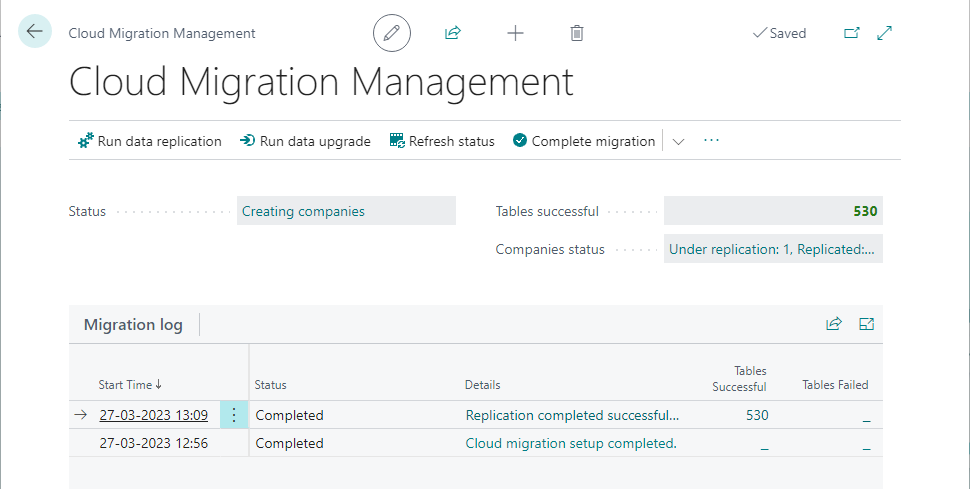
A complete list of requirements for the migration can be found here.
Please remember that:
- In Business Central online, data is compressed using the Azure SQL data compression feature. As a consequence, the data size in your on-premises database might not match the data size when migrated to the Business Central service.
- Data migration can be run multiple times and you can select the tables you want to migrate.
- After the initial migration, only changes in on-premises data will be migrated, resulting in faster iterations.
In this post I don’t want to explain all the steps for a Business Central cloud migration (all is well documented by Microsoft) but I want to talk a bit about how this great tool works under the hood.
I saw customers raising concerns about security and reliability of the migration process. Can I migrate lots of data? Are my data transferred in a secure way?
Cloud Migration under the hood…
To explain the secrets around the Cloud Migration tool, a great starting point is this diagram from Microsoft:
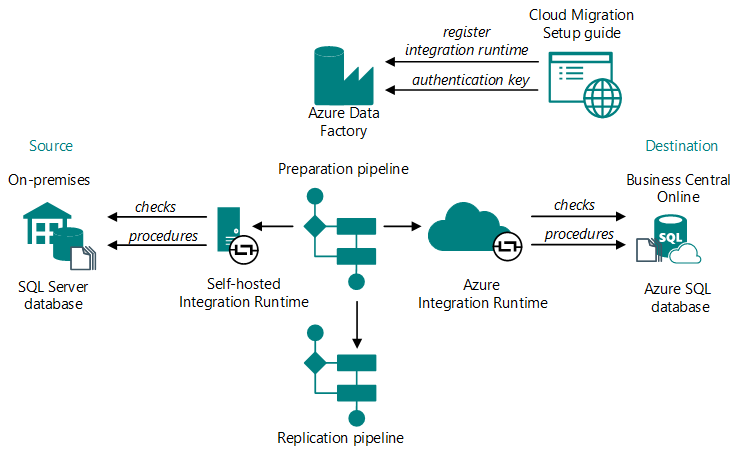
The first myth to dispel is: Business Central cloud migration is using APIs? NO! The Cloud Migration tool uses database to database connection for moving data between the on-premises environment to the cloud environment. This means that the starting point is a SQL Server database or an Azure SQL database containing your data to migrate to the SaaS environment.
A key component of the data migration is Azure Data Factory. Azure Data Factory is a managed cloud service that’s built for migrating large amounts raw data across data sources and controlling data integration projects. It migrates the data between the on-premises database and the online one directly.
Azure Data Factory has pipelines, groupings of activities that copy, move, and transform data, and also orchestrate its flow.
To connect to the on-premises database from a cloud environment, an Integration Runtime is needed. The Integration Runtime component is the compute infrastructure of Azure Data Factory.
The migration process uses two instances of the Integration Runtime:
- The first instance is used to securely copies data from on-premises to the cloud, where the pipelines are created. This instance can be different accordingly to the on-premises db you’re using:
- SQL Server: a self-hosted integration runtime installed locally on the on-premises network and registered in Azure Data Factory is used.
- Azure SQL: an Azure Integration Runtime is used
- From the data preparation and replication pipeline, a second instance of the Azure Integration Runtime moves the data to the online database.
These are all the components that are automatically provisioned when you start the Cloud Migration wizard. But what happens under the hood?
The Azure Data Factory instance used for the cloud migrations are (at the moment) always located in Europe region. Azure Data Factory is only used for the orchestration of the data processing and it does not connect to any database instances.
The database connection (direct SQL connection) is executed by the Integration Runtime and these Integration Runtime instances are always region-specific (same region or closest to the target Business Central online environment) to ensure data compliance, efficiency, and reduced network egress costs.
Azure Data Factory including Azure Integration Runtime and Self-hosted Integration Runtime does not store any temporary data, cache data or logs except for linked service credentials for cloud data stores, which are encrypted by using certificates.
The target Business Central database is an Azure SQL database and it requires encryption (SSL/TLS) while data is in transit to and from the database. It is not possible to configure integration runtimes to use unencrypted traffic.
Azure SQL Database also supports transparent data encryption (TDE), which helps protect against the threat of malicious activity by performing real-time encryption and decryption of the data, without requiring changes to the application. This behavior is transparent to the client.
So… is your data secured during a cloud migration? Absolutely YES! I hope that this explanation. on how this tool works under the hood can help you trust it.
I want to close this post with a personal tip that I recommend: if you have a large Business Central database to migrate to a cloud environment, I suggest to restore the database into an Azure SQL database (P1 or more… go with power!) and then perform the cloud migration from this Azure SQL instance. In this way you can reduce the time for the migration a lot (it’s Azure on Azure).
P.S. Don’t worry about the Azure SQL cost: you can take the database online only for the time of the data migration, then you can put it offline (so very few dollars). Just as an example, a P1 database online for 5 hours costs about 3 dollars:


 Stefano Demiliani