

Some weeks ago we had a nice interview with two amazing US guys (Brad Prendergast and Kristoffer Ruyeras aka Kris Kris Kris) about our semantic search implementation for the Business Central AI Hackathon. You can see the interview here and also I recommend to check the post about my friend’s Dmitry Katson here, where you can see the pitch describing the solution.
Why we need a Semantic Search in Dynamics 365 Business Central I think it’s clearly explained following the above links, but I want to be more clear here and exlain our idea to everyone. Dynamics 365 Business Central at the moment uses full-text search for finding data. If you go for example to the Search in company data feature and search for desk, you can find where desk is used on records:

But if you try to search for example for the word furniture, this is the result:
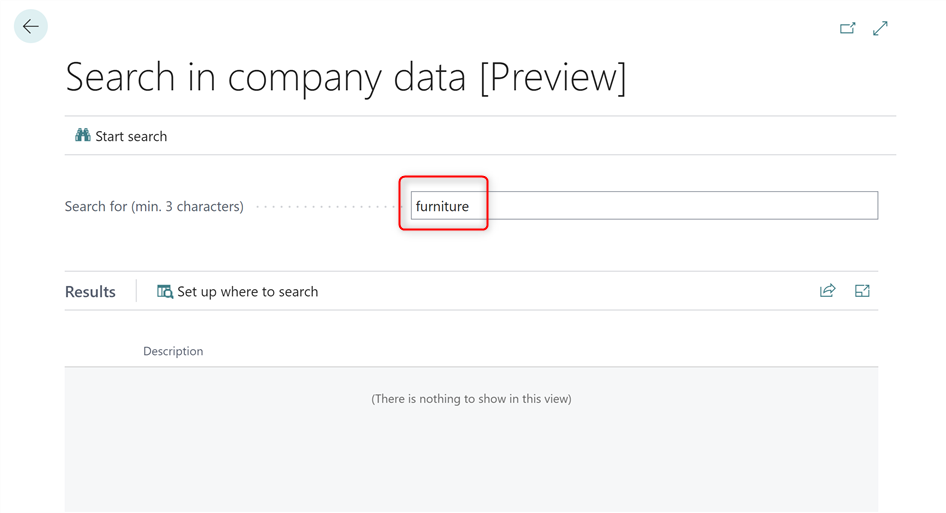
You have no results! This is because you have no records that match with the word furniture.
What about having instead a semantic search?
Semantic search is a search engine technology that interprets the meaning of words and phrases. The results of a semantic search will return content matching the meaning of a query, as opposed to content that literally matches words in the query.
After implemented Semantic Search for Business Central during the AI Hackathon, when you search for a word like furniture, you have results like the following:

And during the Hackathon we not only implemented Semantic Search, but also we demonstrated that if something will be done in the backend (SQL layer) performances of the search capability can really fly. You can see my post here for a demo about the results we were able to achieve.
To implement this type of data retrieval technique, you need some fundamental components. First of all, you need to create vector representations of your data and you need to use embeddings.
Embeddings are a way to represent discrete entities like words, sentences, images, etc. as numerical vectors. At its core, embeddings convert these discrete entities into points in continuous vector space. The relative position of each point encodes the semantic closeness between entities. Entities that are semantically similar end up closer together in the vector space.
A vector (in simple words) is just a list of numbers (1536 dimensions) and finding if two vectors represent similar object is as easy as calculating the distance between the vectors.
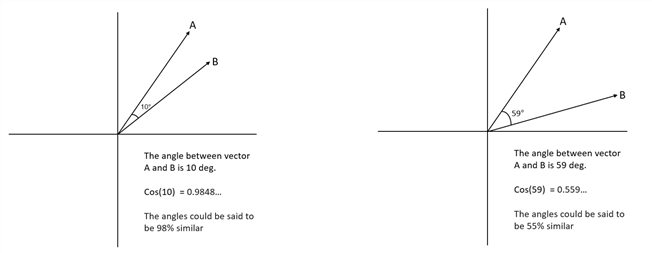
Cosine similarity is a measure of the degree of similarity between two vectors in a multidimensional space and it is commonly used in artificial intelligence and natural language processing to compare embeddings.
A cosine similarity is a value that is bound by a constrained range of 0 and 1:
- The closer the value is to 0 means that the two vectors are orthogonal or perpendicular to each other.
- When the value is closer to 1, it means the angle is smaller and the images are more similar.
To create embeddings and vector representations of your data, you can use AI models like text-embedding-ada-002 (we used that in the Hackathon) or also the recently announced (more powerful) text-embedding-3-large model. If you use this new model, just remember that upgrading between embedding models is not possible. In order to migrate from using text-embedding-ada-002 to text-embedding-3-large you would need to generate new embeddings.
When we had the vector representations for our Business Central data, I worked on implementing at the SQL layer (Azure SQL) the following two components:
- Optimization of the embedding table (SQL table where we stored the vectors) by using clustetred columnstore indexes.
- Creation of a native SQL function for calculating the cosine similarity between vectors and returning a JSON to Business Central.
In this way Business Central was able to pass to this native SQL function the word to search, then SQL calculates the cosine similarity (semantic search) with all the vectors of the Business Central data and then it returns the most similar data (accordingly to the value of the cosine similarity, that we used as a parameter for having the list of results).
Doing that at the SQL level was fast… really fast! And we “vectorized” lots of records.
Why I think it’s the right time to start thinking seriously on implementing Semantic Search in Business Central?
At recent Microsoft Build conference, the Azure SQL team has finally publicly announced native vector support in Azure SQL. The integration of vector search within RDBMS allows customers to perform vector similarity searches alongside traditional SQL queries, enhancing data analysis and decision-making.
There’s a private preview in place for these features, but we can say something about that because lots of features are now public. Azure SQL natively will support vectors allowing you to create, store and search vectors. Vectors are stored in a compact binary format so that calculating distance between two vectors is done in the fastest and most efficient way possible.
There are 4 functions introduced in the platform to perform operations on vectors in binary format and generated vectors can be stored in a VARBINARY(8000) column or variable:
| Function | Description |
| JSON_ARRAY_TO_VECTOR | Creates a vector from a JSON array |
| ISVECTOR | Tests whether a binary contains a valid vector |
| VECTOR_TO_JSON_ARRAY | Returns a vector as a JSON array |
| VECTOR_DISTANCE | Calculates the distance between two vectors using a specified distance metric |
To store vectors is a SQL table, you can take advantage of the existing VARBINARY data type:
ALTER TABLE [dbo].[MyBCVectors] ADD [VectorBinary] VARBINARY(8000);
You can call the AI embedding model (like text-embedding-ada-002) and you can pass the embeddings to the new built-in SQL function JSON_ARRAY_TO_VECTOR that will converts a JSON array to a compact binary representation of a vector:
UPDATE [dbo].[MyBCVectors]
SET [VectorBinary] = JSON_ARRAY_TO_VECTOR([vector]);
GO
In this way vectors are now stored in an efficient binary format in the platform (SQL level) that also enables usage of dedicated CPU vector processing extensions like SIMD and AVX.
You can use the VECTOR_TO_JSON_ARRAY function to convert a vector in a compact binary format to a human-readable string format (JSON):
SELECT TOP(5) No, VECTOR_TO_JSON_ARRAY(VectorBinary) AS jsonvector FROM [dbo].[MyBCVectors]
The new VECTOR_DISTANCE SQL function calculates the distance between two vectors using a specified distance metric. The following distance metrics are supported:
- cosine: Cosine distance
- euclidean: Euclidean distance
- dot: (Negative) Dot product
Implementing cosine similarity between vectors during the Hackathon required me to write different lines of T-SQL code. Now it’s just as easy as calling this new function:
DECLARE @v1 VARBINARY(8000) = JSON_ARRAY_TO_VECTOR(‘[1,1]’)
DECLARE @v2 VARBINARY(8000) = JSON_ARRAY_TO_VECTOR(‘[-1,-1]’)
SELECT
VECTOR_DISTANCE(‘cosine’, @v1, @v2) AS cosine
Conclusion
Azure SQL database has now a native support for vectors and for semantic search capabilities. This is in my opinion the right time to support these features natively also in Dynamics 365 Business Central, but not by implementing custom functionalities in AL but instead giving support for vectors out of the box leveraging the SQL native features.
I would like also to have the previously mentioned SQL functions exposed as native AL method, because I think that in this way partners could create lots of interesting scenarios for AI.
If we want to have a serious AI in an ERP box, only having AL wrappers around Azure OpenAI REST APIs is not enough. But if AI features will be embedded in the platform (SQL layer or exposing complex objects like Semantic Kernel as AL objects) things can really change.
Let’s see what happens, but I think that our semantic search in BC idea is now more than just an idea of 3 crazy people…

 Stefano Demiliani