

In a traditional Dynamics 365 Business Central project, expecially when the customer is a large company, it’s quite often requested to monitor the changes of some important or sensitive fields on specific entities.
Dynamics 365 Business Central supports logging changes on fields for entities that you can specify (standard or custom ones).
On the Change Log Setup page, you can turn on or turn off the change log.

On the Change Log Setup page, if you choose the Tables action, you can specify which tables you want to track changes for, and which changes to track. Business Central also tracks several system tables:
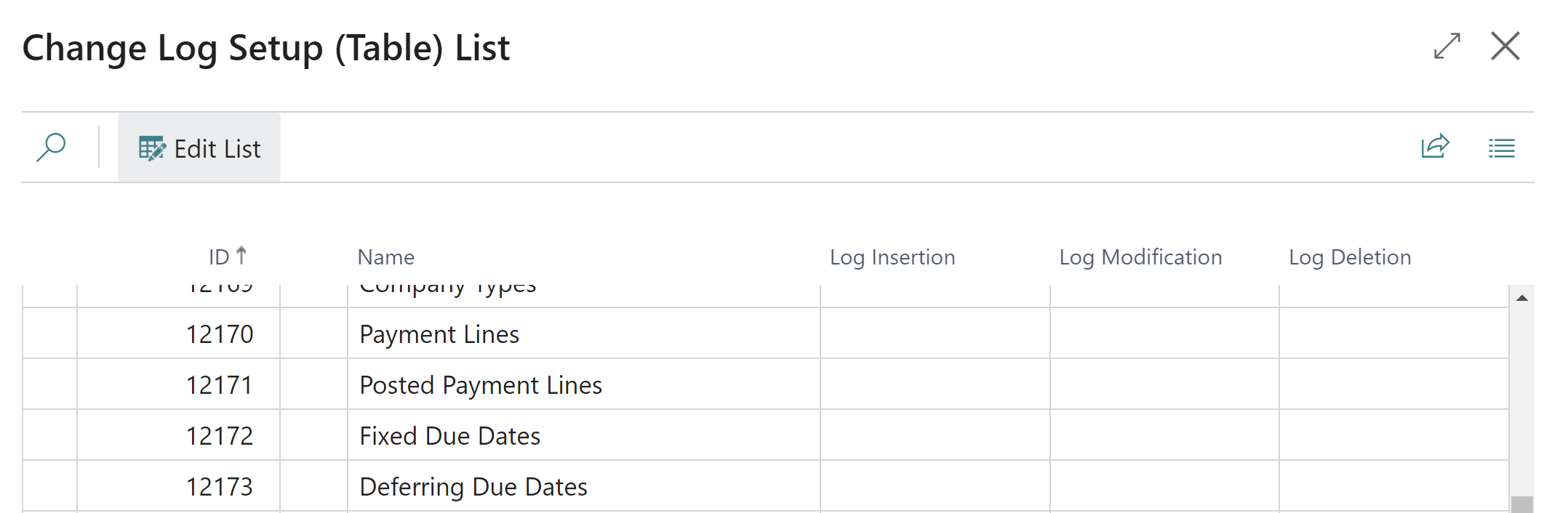
For every table you can specify the fields that you want to monitor for changes (here an example for the Customer table):

You can also use the Set up field monitoring assisted setup guide to specify the fields that you want to monitor based on filter criteria and add and email account who will receive the email notifications for field changes:
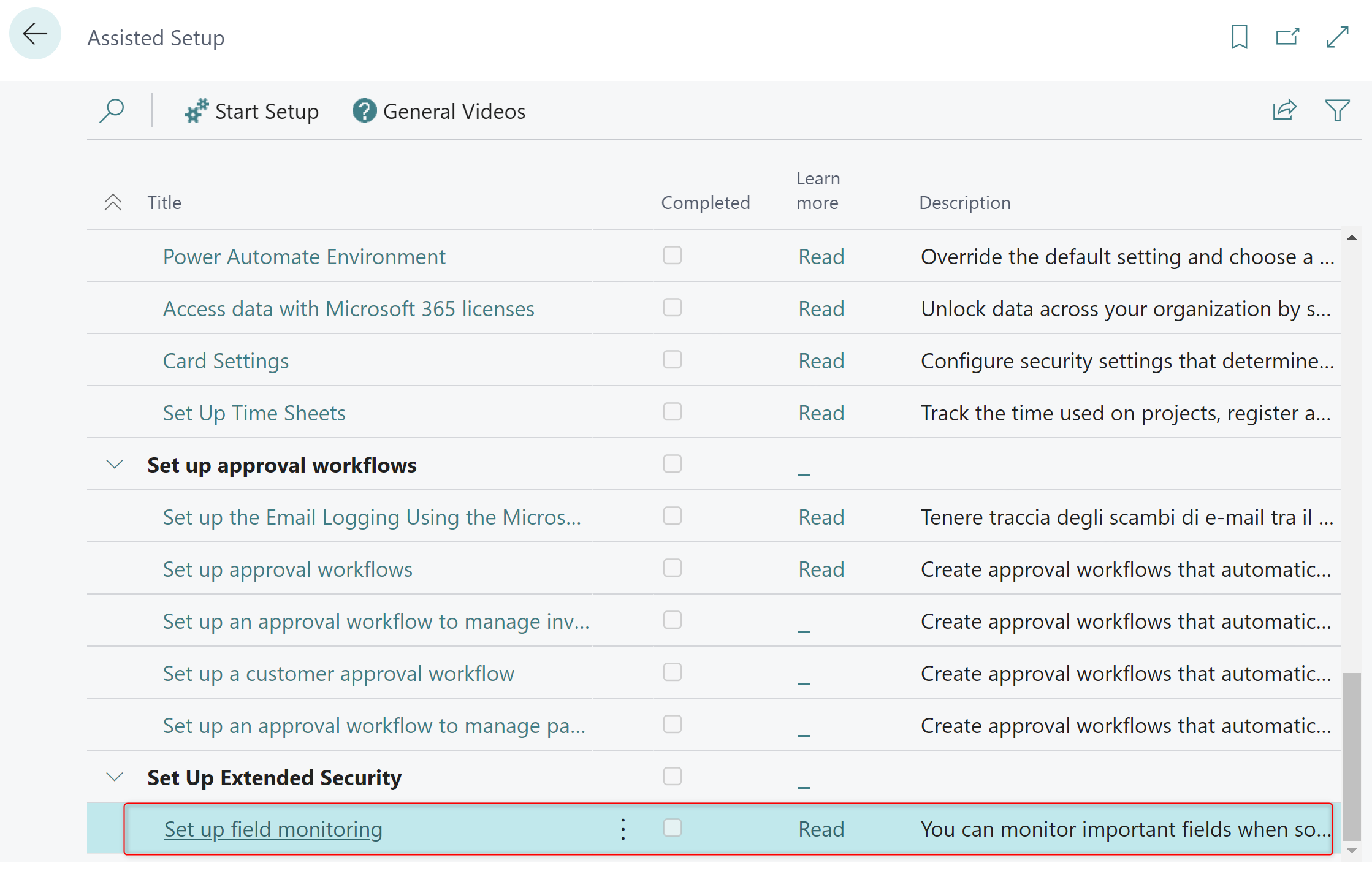
But this requires activating the email functionalities and honestly it’s quite limited.
Why not using telemetry for a more practical and advanced field monitoring?
When you have telemetry enabled on a Dynamics 365 Business Central environment, all signals related to field changes are emitted to Application Insights. You can see the entire list of signals related to this topic here.
By relying on telemetry for this task, you can use a KQL query like the following to discover all your sensitive field changes in a particular time range:
traces
| where timestamp > ago(7d)
    and customDimensions.eventId == 'AL0000CTE'
| project timestamp, eventId=customDimensions.eventId, message
, componentVersion = customDimensions.componentVersion
, aadTenantId = customDimensions.aadTenantId
, environmentType = customDimensions.environmentType
, environmentName = customDimensions.environmentName
, extensionVersion  = customDimensions.extensionVersion
, alTableNumber = customDimensions.alTableNumber
, alFieldNumber = customDimensions.alFieldNumber
, alTableCaption = iff( isempty(customDimensions.alTableCaption), customDimensions.altableCaption, customDimensions.alTableCaption )
, alFieldCaption = iff( isempty(customDimensions.alFieldCaption), customDimensions.alfieldCaption, customDimensions.alFieldCaption )
This query gives you the name of the field changed and its related table name, plus the extension defining this field.
Using a KQL query is much more powerful for finding this type of informations. Also, with the above query you can setup an alert that can send a more advanced notification compared to the Business Central standard email notification coming from the standard assisted setup. You can for example create a Logic Apps flow (or a Power Automate one… yes) that can summarize the entires and send a notification to Teams via adaptive card or other social channels you have, or a mobile notification… it’s just up to you.
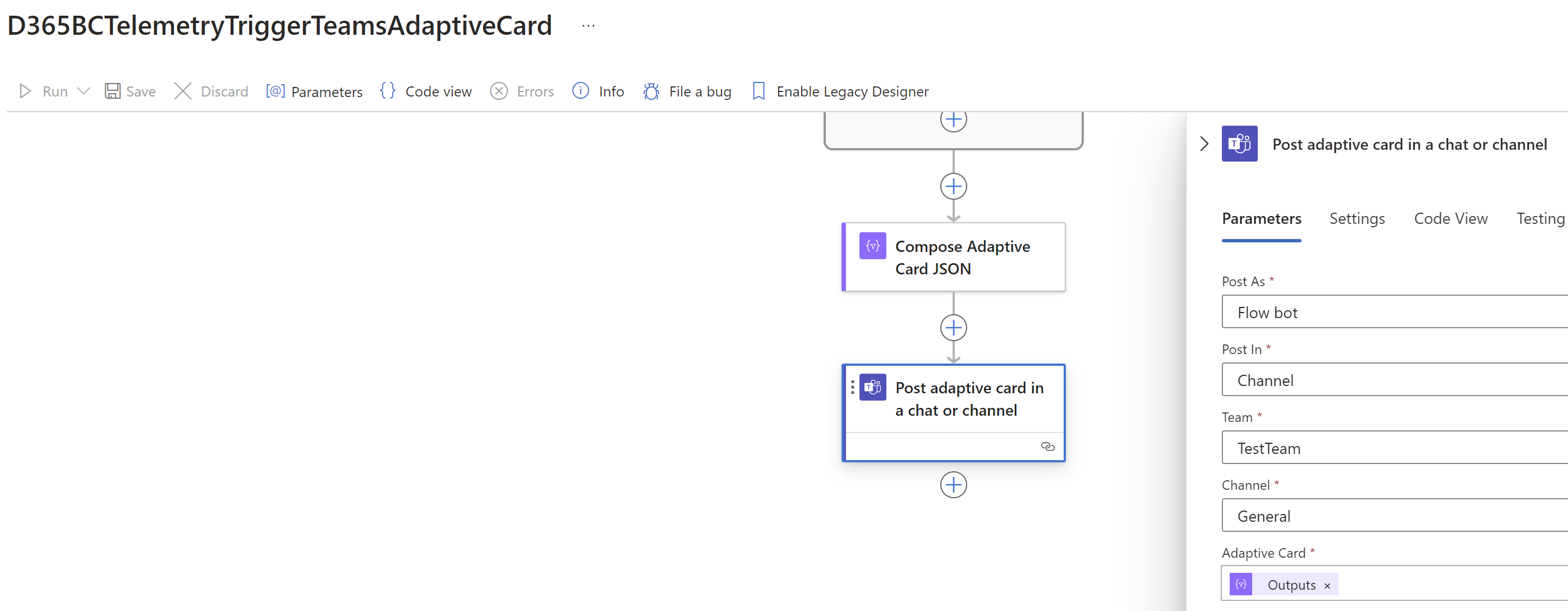
You can also delete the Change Log Entry table more frequently because your data is still in Application Insights.
Please start using this way of monitoring field changes, it’s absolutely a better way and that opens you a wide range of actions that you can take. I see too many partners just relying on the standard features coming from the Business Central UI, forgetting that also telemetry is here to give you these data.
Be aware that tracking changes can impact performance, which can cost you time, and increase the size of your database, which might cost you money. To reduce those costs, consider the following:
- Use caution when choosing the tables and operations.
- Do not add ledger entries and posted documents. Instead, prioritize system fields such as Created By and Created Date.
- Do not use the All Fields tracking type. Instead, choose Some Fields and track only the most important fields.

 Stefano Demiliani