


Microsoft has publicly announced in these days that the Global rollout of the public preview for the Dataverse IP Firewall feature is completed and it’s now available to all customers across all the Geos starting July 7th, 2023.
Power Platform environment admins can now enable IP restrictions on Power Platform environments (available only for the Managed Environments) individually via Power Platform admin Center. This new feature is turned off by default.
With IP Firewall, you will be able to configure IP restrictions on each of the Power Platform environments thereby allowing access to Dataverse API only from allowed IP ranges. This will allow you to mitigate risks of insider exfiltrating the data and prevent token replay attack from restricted IP ranges.
When a request is made to Dataverse, the request IP address is evaluated in real time against the IP ranges configured for the Power Platform environment. If the IP address is from the IP ranges configured for the Power Platform environment, the request is allowed. If the IP address is not from the IP ranges configured for the environment, the request is rejected by the IP firewall with error message: The request you are trying to make is rejected as access to your IP is blocked. Contact your administrator for more information.
To use this new feature, simply go to your Power Platform admin Center, select Environments from the left navigation bar and click on the environment name where you want to enable this feature. Then select Settings –> Product –> Privacy + Security and urn on the “Enable IP address based firewall rule (Preview) toggle:

How can you allow Dataverse access only from your network resorces and from Dynamics 365 Business Central SaaS?
To restrict Dataverse access to your local network resources, with the Allowed list of IPv4 or IPv6 ranges parameter you can specify the allowed IP ranges in classless inter-domain routing (CIDR) format. If you have multiple IP ranges, you can separate them using a comma. This field excepts alphanumeric characters with a maximum length of 4000 and allows a maximum of 200 IP ranges. Here is an example of usage:
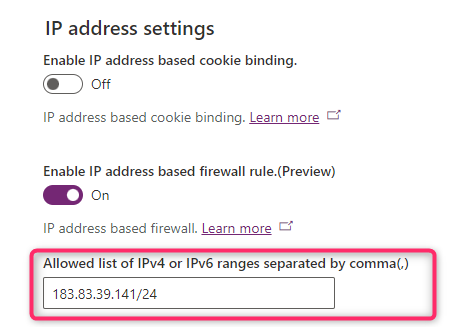
Please note that the IP change typically takes effect in about five minutes.
In the Service tags to be allowed by IP firewall option, you can select a list of service tags from the drop-down list to bypass the IP firewall restrictions. To allow traffic from Dynamics 365 Business Central SaaS, you need to set this option as follows:
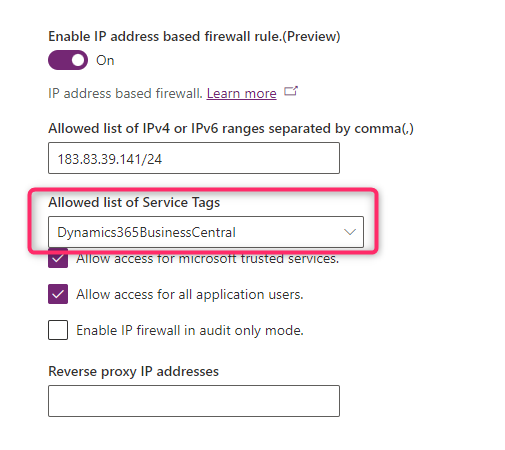
There are also other important settings to remember here:
- Allow access for Microsoft trusted services: Enabled by default. Enabling this setting allows access to the Power Platform environment with Dataverse for service tags
PowerPlatformInfra,GenevaSynthetics, andGenevaActionsand for internal first-party applications. - Allow access for all application users: Enabled by default. This setting allows all application users third-party and first-party access to Dataverse APIs.
When Allow Access for Microsoft trusted services and Allow access for all application users IP firewall settings are disabled, some services that use Dataverse might no longer work, such as Power Automate flows.
IP firewall is supported for any Power Platform environment that includes Dataverse.
The Audit-only mode allows you to identify the IP addresses that are making calls to a Power Platform environment and helps you in configuring restrictions without breaking or blocking any users from the allow-listed IP ranges.
You can download the audit log data in JSON format by using Dataverse OData API. The format of the audit log API is:
https://{orgURI}/api/data/v9.1/audits?$select=createdon,changedata,action&$filter=action%20eq%20118&$orderby=createdon%20desc&$top=10
where:
- {orgURI} is the Dataverse environment URI.
- Set the action value to 118 for this event.
- Set the number of items to return in top clause (like top=10).

 Stefano Demiliani